Reminders allow you to schedule automated SMS text or email reminders for workflows. Here is a flow of how to utilize reminders for a workflow:
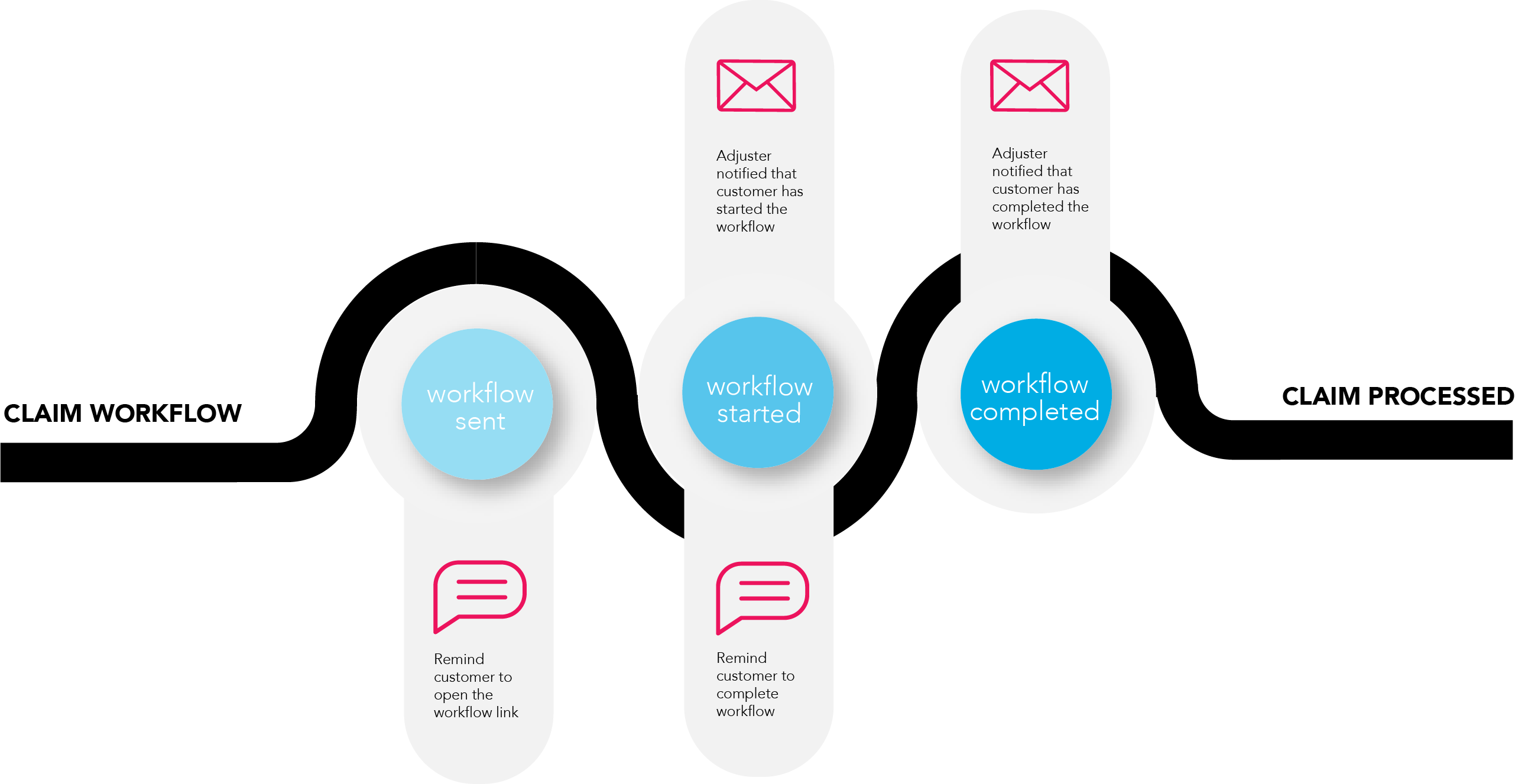
To activate reminders, the owner of the account must set Contact Strategy to 'store'. By default, this feature is set to 'discard' because MirrorMe does not store any customer contact details.
There are two ways to activate this feature.
When the reminders feature is set to 'store' on the account level, any new project created will automatically have access to the feature.
Modifying the setting does not automatically apply the change to existing projects, so the owner will have to revisit existing projects to manually change the setting to 'store'. When this feature is activated for a specific project, other projects will continue to function without reminders.
Creating Reminders
Click on the plus button in the Reminders tab to get started.
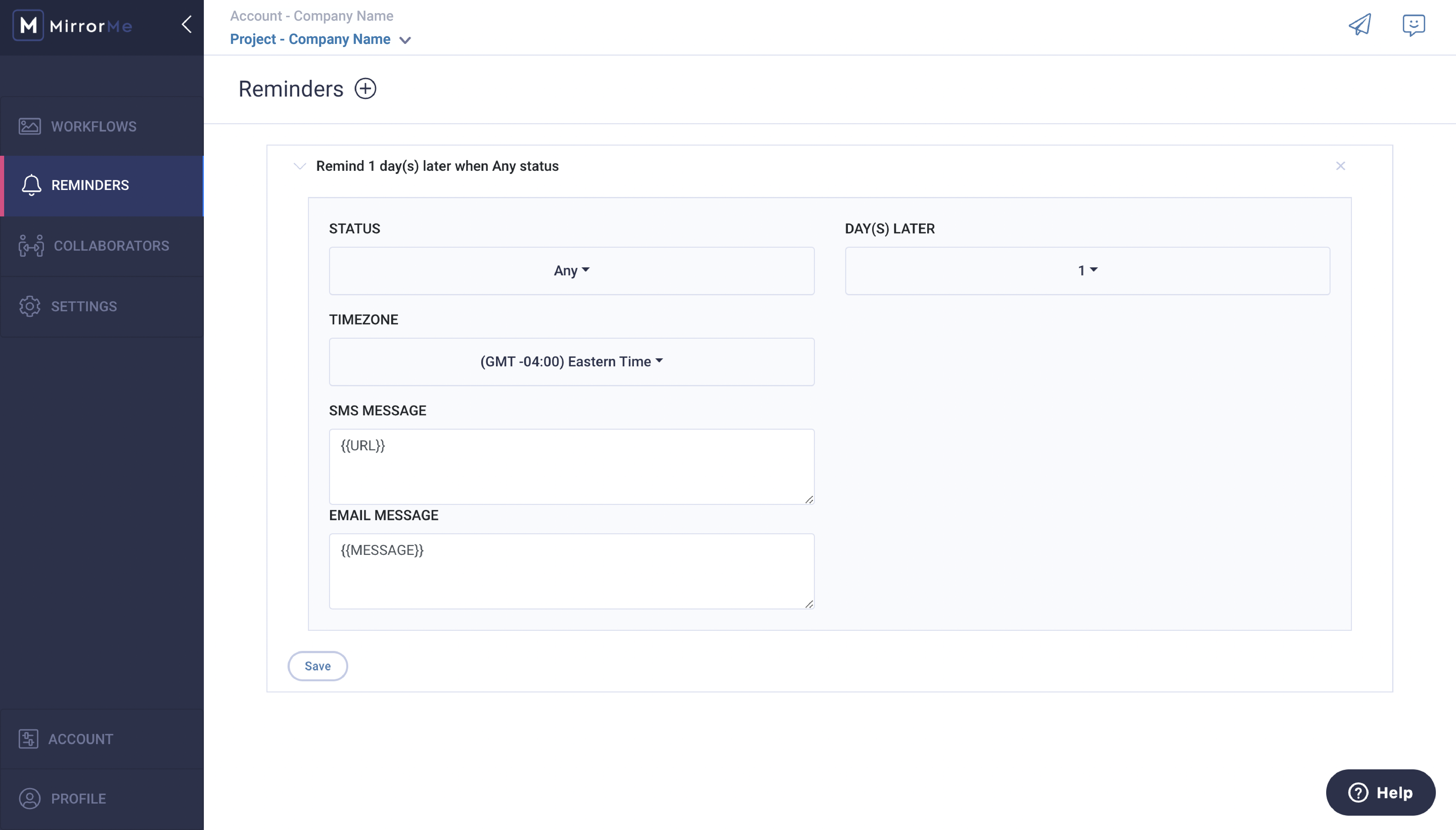
First, set the status for your reminder.
- Any - Use for general reminders to start/complete the workflow
- In Progress - Use for workflows that have been sent but not started
- Started - Use for workflows that have been started but not completed
Then, click the Days Later dropdown to select when you want the reminder to be sent. You can create a reminder up to two weeks in advance. The clock starts the day after you set it.
Make sure to set your reminders during business hours. The system will send the reminder the next day if set after 5 PM.
Set the reminder to your preferred timezone.
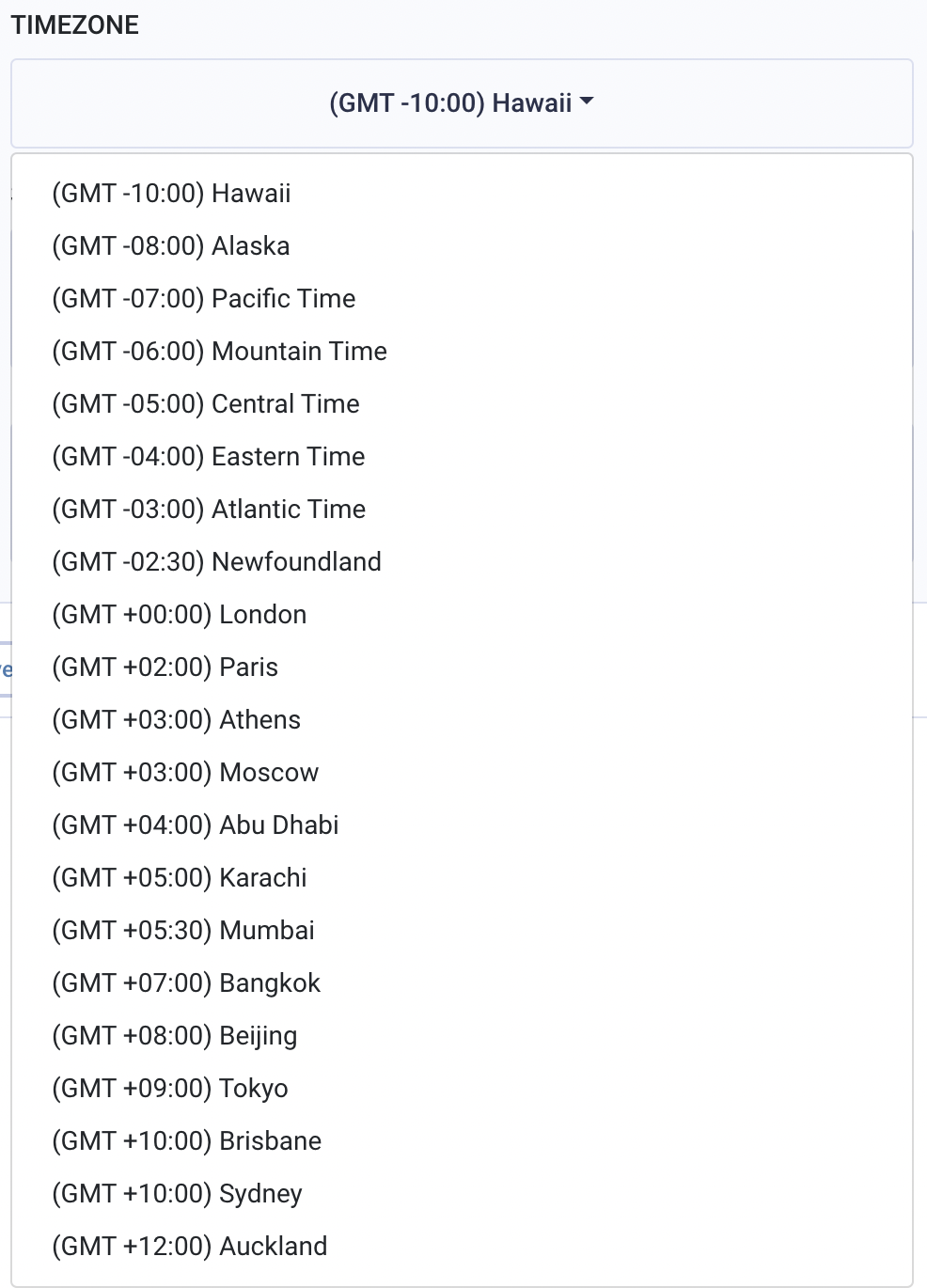
Note: If you only service customers outside of your region, set the reminder to their
timezone. For example, if you are based in New York and only service customers in
California, select Pacific Time.
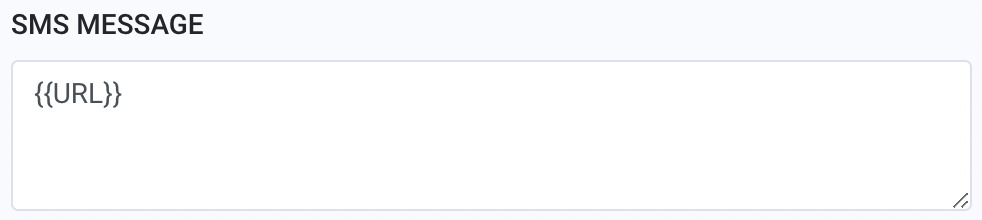
Next, customize the template message for your SMS text.
Make sure to customize an appropriate message for the state of your reminder. {{URL}} is the session link included in your SMS text message.
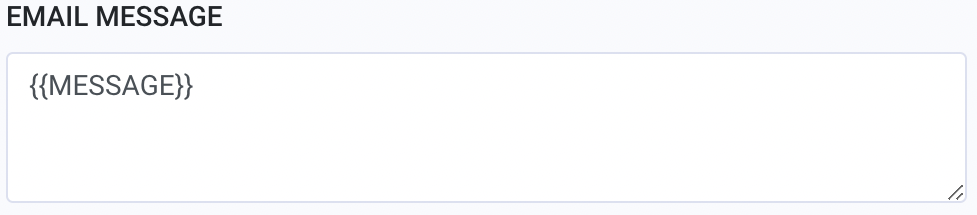
To set a customized email reminder, simply type a new message in the Email Message box and include the code {{URL}} for the session link. When the email message is not customized, you will see the code {{MESSAGE}} allowing the system to use your default SMS message for email invites.
IMPORTANT: Do not delete the {{URL}} code, as users would be unable to access the
workflow without it.
Lastly, click save to set up the automated reminder.
To download this article, click print from your browser to save it as a PDF.