Modifying account settings makes it easier to create projects with custom settings, messaging, and branding options. By adding your custom settings on the account level, each time you add a new project the settings will automatically populate into your project.
Account settings has four sections: general, messaging, branding, and project privacy. This article breaks down all the account settings by section.
Note: Any modifications made to account settings will only populate and be visible in new projects.
General
Account Name - Title the account as you would like it to appear in the Service App.
Timeout - Click on the dropdown to set the amount of time you'd like to be inactive before you have to log in again.
Messaging
Messaging set on the account level will automatically populate to any new project created. This helps to avoid having to copy any messaging into any new projects. If you want different default messages for various projects, make sure this section is left blank.
Workflow SMS Message - This is the workflow message sent to the recipient. You can personalize the invitation with your company information and a default greeting.
The default code: {{URL}} generates the unique session link for each SMS or email invite. Do not delete the {{URL}} code, as users would be unable to access the workflow without it.
Note: Click the two lines on the bottom right-hand corner to expand the text box.
Live Video SMS Message - This is the text message recipients will see when they receive an invite for a live video call. Similar to the workflow SMS message, make sure to include the {{URL}} code when creating your default message.
Email Message - You can opt to send a template email message with the link invite. Your default message is meant to read like a standard email, so start the message as you would for any email (i.e "Dear Company Name Customer,"). When the email message is not customized, you will see the code: {{MESSAGE}} allowing the system to use your default SMS message for email invites.
Thank You Message - Create a custom message to provide further instructions or a follow up update. The Thank You message pops up when the end user completes a workflow. It is best to keep the message brief.
Notification Inbox - The notification inbox is used to override the default email notification sent to the sender of the invite. You can add an alternative email to the notification field.
This is generally used when you would like the notification emails to be redirected to a general (group) inbox for team monitoring, rather than to the team member who sent the invitation.
Notification Settings - Select from the list of options to set up your email notification frequency.
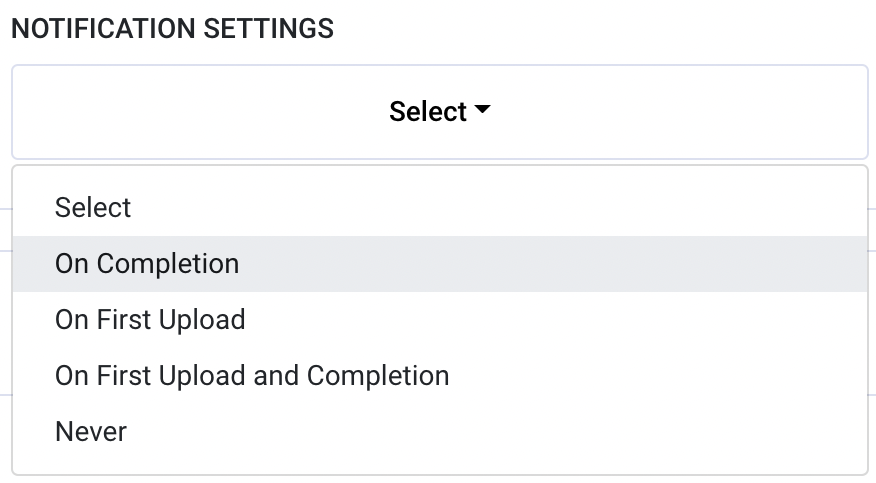
Select from the following:
- On Completion to get an alert when the end user has completed all tasks in a workflow session.
- On First Upload to get an alert when the end user has submitted one task item to their session.
- On First Upload and Completion to receive alerts upon both first media upload and completion of a workflow.
- Never to not receive any emails at all.
Branding
Company Name - Add your company name as you would like it to appear on the Service App and for all banners on the mobile interface.
Terms of Service URL - Add a PDF link to your company's terms and conditions. Make sure to verify the link is in the appropriate language.
Privacy Policy URL - Add a PDF link to your company's privacy policy.
Note: Make sure to verify links are active and set to the appropriate language
for your project's locale.
Logo - Upload your company's logo to personalize the customer experience. Acceptable formats are PNG and JPEG. For best results, upload your logo as a vector file.
Note: Contact us to customize your logo or if issues uploading your logo persist.
Project Privacy
Contact Strategy - This feature allows you to save a customer's contact information. It is used to activate the Reminders feature.
Selecting 'store' allows you to set up your reminders so customer can receive an SMS or email notifications to complete a workflow. Keep it set at 'discard' if you don't want our system to store customer information.
Note: By default, we do not store customer contact information.
Enable GPS - Enable the GPS feature to request geo-coordinates from the end user. When this feature is activated, the user's mobile device will prompt them to share their location. When the user accepts, their data (including longitude and latitude coordinates) will be available to you.
Record Live Video Sessions - Select yes to automatically record live video calls (including snapshots) taken during the live call. This setting is set to no by default.
Data Retention - Your data retention is the length of time in which project data is stored in the cloud before it is permanently deleted from our system.
Private S3 Storage - Customizing S3 bucket redirects saved data to your own cloud service.
Disclaimer Message - The disclaimer message will be displayed at the bottom of every workflow landing page sent to the user.
This is the default disclaimer message before customization:
Disclaimer Message Enabled - You can choose to have this feature on and off. This feature is set to yes by default.
To learn more about customizing your disclaimer message click here.
Note: There is a save button in every section. Remember to save any changes made
for each section.
Deleting the account - To cancel the account, the owner of the account can select delete at the bottom of the page to permanently delete the account.
To download this article, click print from your browser to save it as a PDF.